---
title: "Outgoing webhooks"
sidebar_position: 20
---
## Create an outgoing webhook
Suppose you want to write an external application, which executes software tests after someone posts a message starting with the word `#build` in the `town-square` channel.
You can follow these general guidelines to set up a Mattermost outgoing webhook for your application.
1. First, go to **Product menu > Integrations > Outgoing Webhook**. If you don't have the **Integrations** option available, outgoing webhooks may not be enabled on your Mattermost server or may be disabled for non-admins. Enable them from **System Console > Integrations > Integration Management** or ask your System Admin to do so.
2. Select **Add Outgoing Webhook** and add name and description for the webhook. The description can be up to 500 characters.
3. Choose the content type by which the request will be sent.
- If `application/x-www-form-urlencoded` is chosen, the server will encode the parameters in a URL format in the request body.
- If `application/json` is chosen, the server will format the request body as JSON.
4. Select the public channel to receive webhook responses, or specify one or more trigger words that send an HTTP POST request to your application. You may configure either the channel or the trigger words for the outgoing webhook, or both. If both are specified, then the message must match both values.
In our example, we would set the channel to `town-square` and specify `#build` as the trigger word.
If you leave the channel field blank, the webhook will respond to trigger words in all public channels of your team. Similarly, if you don't specify trigger words, then the webhook will respond to all messages in the selected public channel.
5. If you specified one or more trigger words on the previous step, choose when to trigger the outgoing webhook.
- If the first word of a message matches one of the trigger words exactly, or
- If the first word of a message starts with one of the trigger words.
6. Finally, set one or more callback URLs that HTTP POST requests will be sent to, then select **Save**. If the URL is private, add it as a [trusted internal connection](https://docs.mattermost.com/configure/environment-configuration-settings.html#dev-allowuntrustedinternalconnections).
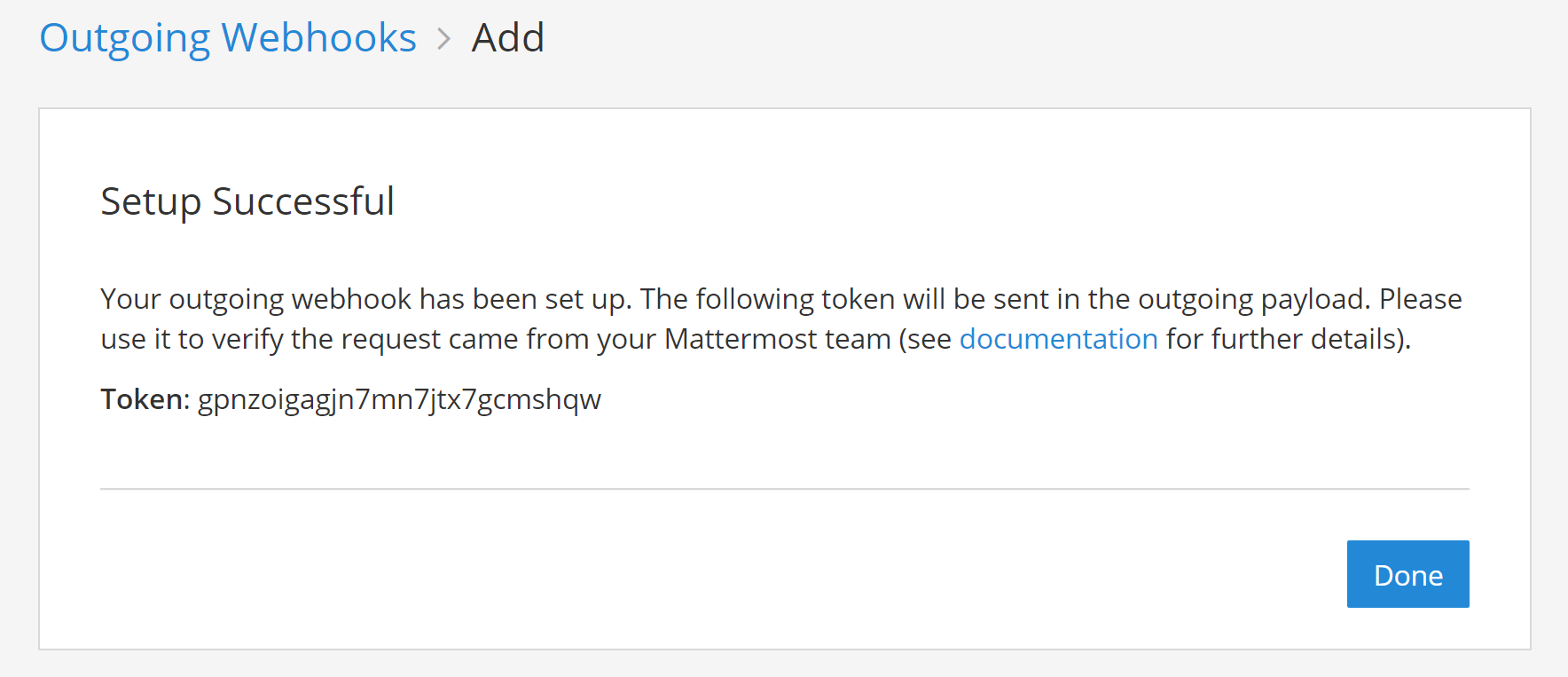
7. On the next page, copy the **Token** value. This will be used in a later step.
## Use an outgoing webhook
1. Include a function in your application which receives HTTP POST requests from Mattermost. The POST request should look something like this:
```http request
POST /my-endpoint HTTP/1.1
Content-Length: 244
User-Agent: Go 1.1 package http
Host: localhost:5000
Accept: application/json
Content-Type: application/x-www-form-urlencoded
channel_id=hawos4dqtby53pd64o4a4cmeoo&
channel_name=town-square&
team_domain=someteam&
team_id=kwoknj9nwpypzgzy78wkw516qe&
post_id=axdygg1957njfe5pu38saikdho&
text=some+text+here&
timestamp=1445532266&
token=zmigewsanbbsdf59xnmduzypjc&
trigger_word=some&
user_id=rnina9994bde8mua79zqcg5hmo&
user_name=somename
```
If your integration sends back a JSON response, make sure it returns the `application/json` content-type.
2. Add a configurable *MATTERMOST_TOKEN* variable to your application and set it to the **Token** value from step 7. This value will be used by your application to confirm the HTTP POST request came from Mattermost.
3. To have your application post a message back to `town-square`, it can respond to the HTTP POST request with a JSON response such as:
```text
{"text": "
| Component | Tests Run | Tests Failed |
|:-----------|:----------|:-----------------------------------------------|
| Server | 948 | :white_check_mark: 0 |
| Web Client | 123 | :warning: [2 (see details)](http://linktologs) |
| iOS Client | 78 | :warning: [3 (see details)](http://linktologs) |
"}
```
which would render in Mattermost as:

You're all set!
## Parameters
Outgoing webhooks support more than just the `text` field. Here is a full list of supported parameters.
| Parameter | Description | Required |
|-----------------|---------------------------------------------------------------------------------------------------------------------------------------------------------------------------------------------------------------------------------------------------------------------------------------------------------------------------------------------------------------------------------------------------------------------------------------------------------------------------------------------------------------------------|----------------------------------|
| `text` | [Markdown-formatted](https://docs.mattermost.com/messaging/formatting-text.html) message to display in the post.
To trigger notifications, use `@`, `@channel`, and `@here` like you would in other Mattermost messages. | If `attachments` is not set, yes |
| `response_type` | Set to `comment` to reply to the message that triggered it.
Set to blank or `post` to create a regular message.
Defaults to `post`. | No |
| `username` | Overrides the username the message posts as.
Defaults to the username set during webhook creation; if no username was set during creation, `webhook` is used.
The [Enable integrations to override usernames](https://docs.mattermost.com/configure/configuration-settings.html#enable-integrations-to-override-usernames) configuration setting must be enabled for the username override to take effect. | No |
| `icon_url` | Overrides the profile picture the message posts with.
Defaults to the URL set during webhook creation; if no icon was set during creation, the standard webhook icon () is displayed.
The [Enable integrations to override profile picture icons](https://docs.mattermost.com/configure/configuration-settings.html#enable-integrations-to-override-profile-picture-icons) configuration setting must be enabled for the icon override to take effect. | No |
| `attachments` | [Message attachments](/developers/integrate/reference/message-attachments) used for richer formatting options. | If `text` is not set, yes |
| `type` | Sets the post `type`, mainly for use by plugins.
If not blank, must begin with "`custom_`".
Specifying a value for the `attachments` property will cause this field to be ignored, and the `type` value set to `slack_attachment`. | No |
| `props` | Sets the post `props`, a JSON property bag for storing extra or meta data on the post.
Mainly used by other integrations accessing posts through the REST API.
The following keys are reserved: `from_webhook`, `override_username`, `override_icon_url`, `webhook_display_name`, and `attachments`.
Use `props.mm_blocks` and `props.mm_blocks_actions` for [Mattermost Blocks](/developers/integrate/reference/mm-blocks) interactive content. | No |
| `priority` | Set the priority of the message. See [Message Priority](/developers/integrate/reference/message-priority) | No |
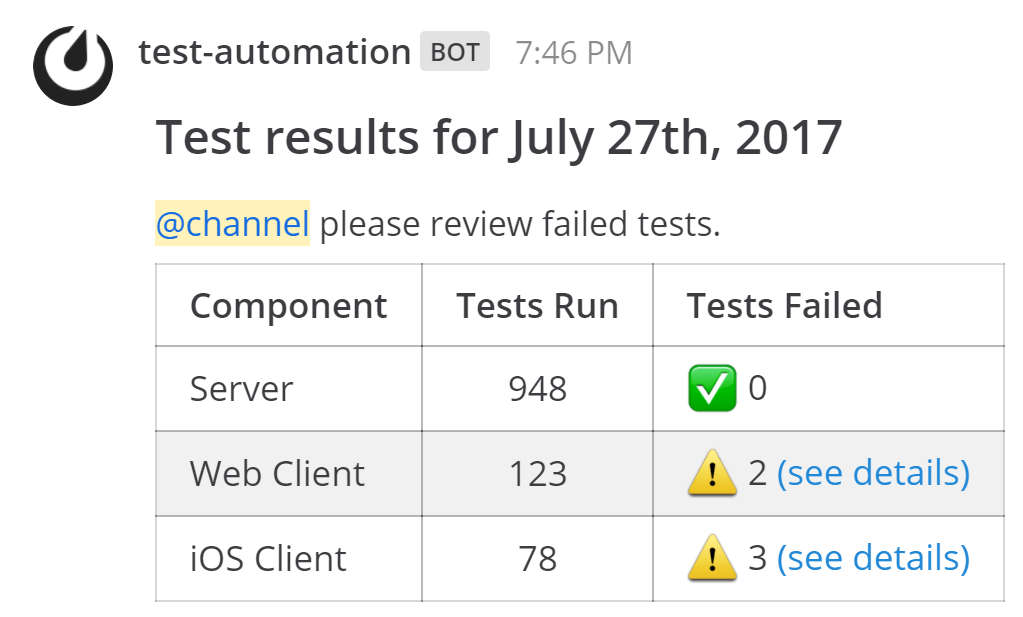
An example response using more parameters would look like this:
```http
HTTP/1.1 200 OK
Content-Type: application/json
Content-Length: 755
{
"response_type": "comment",
"username": "test-automation",
"icon_url": "https://mattermost.com/wp-content/uploads/2022/02/icon.png",
"text": "\n#### Test results for July 27th, 2017\n@channel here are the requested test results.\n\n| Component | Tests Run | Tests Failed |\n| ---------- | ----------- | ---------------------------------------------- |\n| Server | 948 | :white_check_mark: 0 |\n| Web Client | 123 | :warning: 2 [(see details)](http://linktologs) |\n| iOS Client | 78 | :warning: 3 [(see details)](http://linktologs) |\n\t\t ",
"props": {
"test_data": {
"server": 948,
"web": 123,
"ios": 78
}
}
}
```
The response would produce a message like the following:
Messages with advanced formatting can be created by including [Mattermost Blocks](/developers/integrate/reference/mm-blocks), an [attachment array](/developers/integrate/reference/message-attachments), or [interactive message buttons](/developers/integrate/plugins/interactive-messages) in the JSON payload.