
105 lines
4.4 KiB
Markdown
105 lines
4.4 KiB
Markdown
# Jicofo
|
|
|
|
JItsi COnference FOcus is a signaling server, one of the backend components in the [Jitsi Meet] stack.
|
|
|
|
[Jitsi Meet]: https://github.com/jitsi/jitsi-meet
|
|
|
|
## Overview
|
|
|
|
Jitsi Meet conferences are associated with an XMPP
|
|
[Multi-User Chat (MUC) room](https://xmpp.org/extensions/xep-0045.html). The MUC functionality is provided by the
|
|
XMPP server (prosody).
|
|
|
|
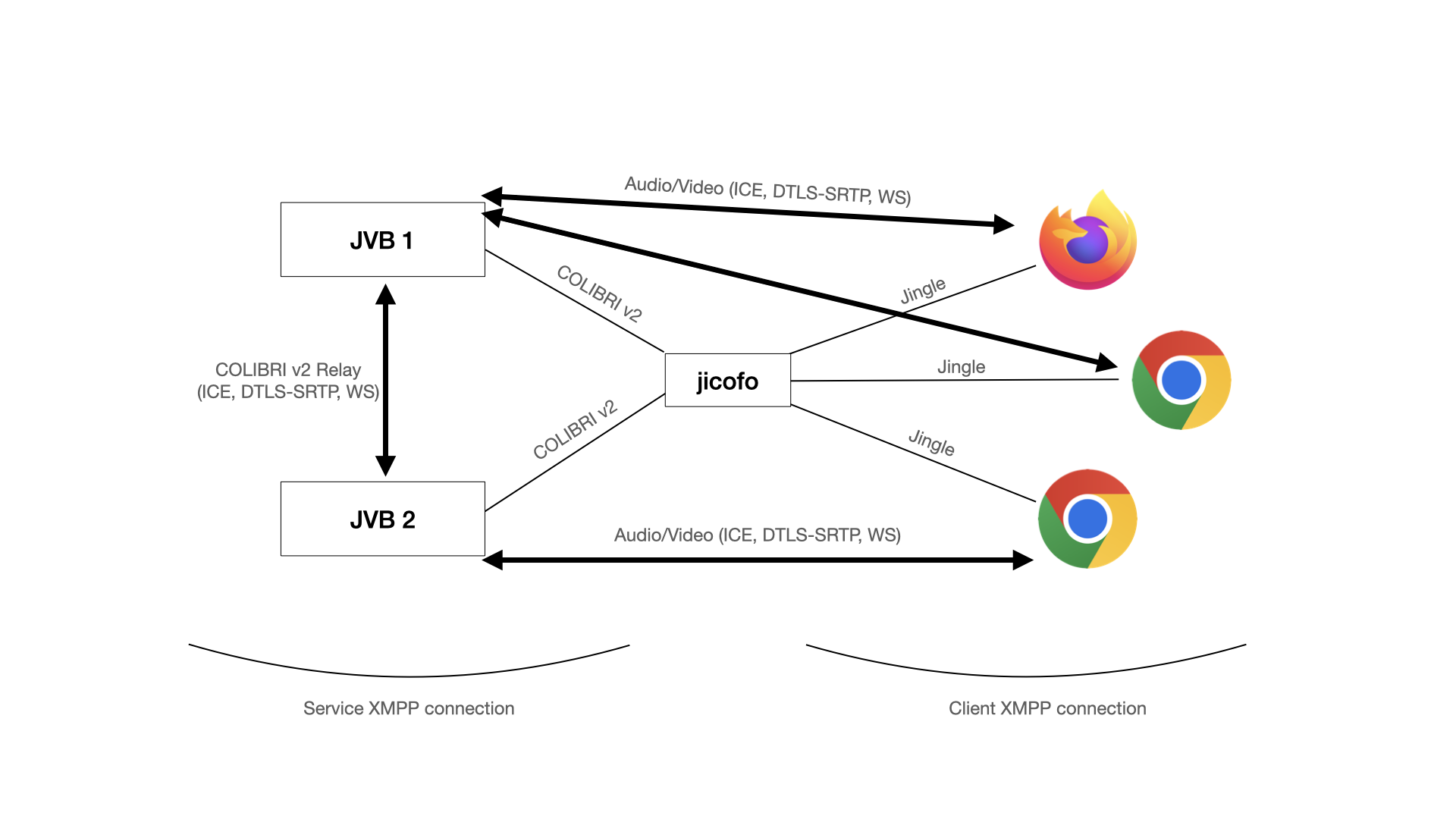
Jicofo joins the conference MUC and is then responsible for initiating a
|
|
[Jingle](https://xmpp.org/extensions/xep-0166.html) session with each participant (in this sense it is the "focus" of the
|
|
conference, which is where its name comes from). While Jicofo manages and terminates Jingle sessions, it does not
|
|
process any of the media (audio/video). Instead, it uses one or more
|
|
[Jitsi Videobridge](github.com/jitsi/jitsi-videobridge/) instances.
|
|
|
|
Jicofo is responsible for selecting a Jitsi Videobridge for each participant, and manages the set of videobridges for
|
|
the conference with the COLIBRI protocol (colibri version 2 is now used, the format in XEP-0340 is now deprecated).
|
|
|
|
In general the conference participants and videobridge instances are accessed through different XMPP connections --
|
|
the configured Client and Service connections, respectively, though they may coincide.
|
|
|
|
|
|
|
|
# Configuration
|
|
Jicofo takes its configuration from a [hocon](https://github.com/lightbend/config/blob/main/HOCON.md) config file,
|
|
usually installed in `/etc/jitsi/jicofo/jicofo.conf`. See the
|
|
[reference.conf](https://github.com/jitsi/jicofo/blob/master/jicofo-selector/src/main/resources/reference.conf) file
|
|
for the available options.
|
|
|
|
# Installation
|
|
## Debian
|
|
|
|
The recommended way to install Jicofo and Jitsi Meet is to follow the
|
|
[Quick Install Guide](https://github.com/jitsi/jitsi-meet/blob/master/doc/quick-install.md) for debian-based systems.
|
|
|
|
### Binaries
|
|
|
|
You can download Debian/Ubuntu binaries here:
|
|
* [stable](https://download.jitsi.org/stable/) ([instructions](https://jitsi.org/downloads/ubuntu-debian-installations-instructions/))
|
|
* [testing](https://download.jitsi.org/testing/) ([instructions](https://jitsi.org/downloads/ubuntu-debian-installations-instructions-for-testing/))
|
|
* [nightly](https://download.jitsi.org/unstable/) ([instructions](https://jitsi.org/downloads/ubuntu-debian-installations-instructions-nightly/))
|
|
|
|
## Docker
|
|
Jicofo is available as a docker image as part of [docker-jitsi-meet](https://github.com/jitsi/docker-jitsi-meet).
|
|
|
|
## Manual
|
|
This section is only required for a manual setup, not necessary when using Quick Install or other methods.
|
|
|
|
### Prosody configuration
|
|
|
|
Jicofo needs privileges to create Multi-User Chat rooms. To grant these privileges we create an account for it and add
|
|
it to the global `admins` list. We create a new virtual host, because the one used by clients only supports anonymous
|
|
authentication. We add this to Prosody's config file (`/etc/prosody/prosody.cfg.lua` by default):
|
|
```
|
|
admins = { focus@auth.jitsi.example.com }
|
|
VirtualHost "auth.jitsi.example.com"
|
|
authentication = "internal_hashed"
|
|
```
|
|
Then restart Prosody and create the user account:
|
|
```
|
|
sudo prosodyctl restart
|
|
sudo prosodyctl register focus auth.jitsi.example.com focuspassword
|
|
```
|
|
|
|
### Building Jicofo
|
|
Build using maven with:
|
|
```commandline
|
|
mvn install
|
|
```
|
|
|
|
This will create a package in `jicofo/target/jicofo-1.1-SNAPSHOT-archive.zip`
|
|
### Running Jicofo
|
|
Extract the distribution package and run with `jicofo.sh`.
|
|
|
|
### Certificates
|
|
Jicofo uses an XMPP user connection (on port 5222 by default), and since the
|
|
upgrade to smack4 it verifies the server's certificate. In a default
|
|
installation the debian installation scripts take care of generating a
|
|
self-signed certificate and adding it to the keystore.
|
|
|
|
For situations in which the certificate is not trusted you can add it to the
|
|
store by:
|
|
|
|
#### On Linux
|
|
```
|
|
sudo cp cert.pem /usr/local/share/ca-certificates/
|
|
sudo update-ca-certificates
|
|
```
|
|
|
|
#### On MacOS X
|
|
On Mac java uses its own keystore, so adding the certificate to the system one
|
|
does not work. Add it to the java keystore with:
|
|
```
|
|
sudo keytool -importcert -file cert.pem -keystore /Library/Java//JavaVirtualMachines/jdk1.8.0_25.jdk/Contents/Home/jre/lib/security/cacerts
|
|
```
|
|
|
|
Note that if the XMPP server you are connecting to is a prosody instance
|
|
configured with the jitsi-meet scripts, then you can find the certificate in:
|
|
```
|
|
/var/lib/prosody/$JICOFO_AUTH_DOMAIN.crt
|
|
```
|